
Your Steam Trade URL is used when a seller needs to send eligible Steam items directly to your account. Before placing an order that requires a Steam Trade URL, make sure your link is correct and your inventory privacy settings allow trades.
Step 1: Log In to Steam
Log in to your Steam account and open your Inventory.
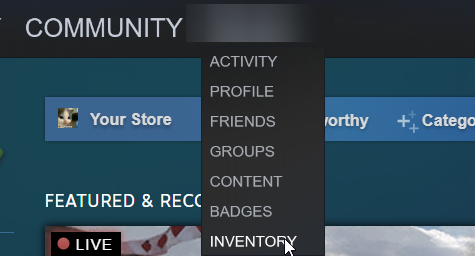
Step 2: Open Trade Offers
From your Steam Inventory page, click Trade Offers.
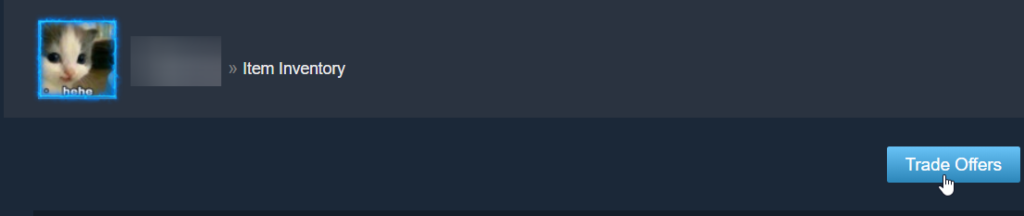
Step 3: Open Trade Offer Settings
On the Trade Offers page, click Who can send me Trade Offers?
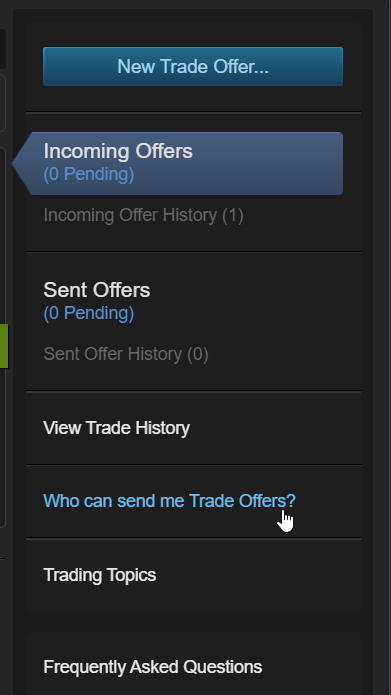
Step 4: Copy Your Steam Trade URL
Scroll to the Third-Party Sites section and copy your Steam Trade URL.
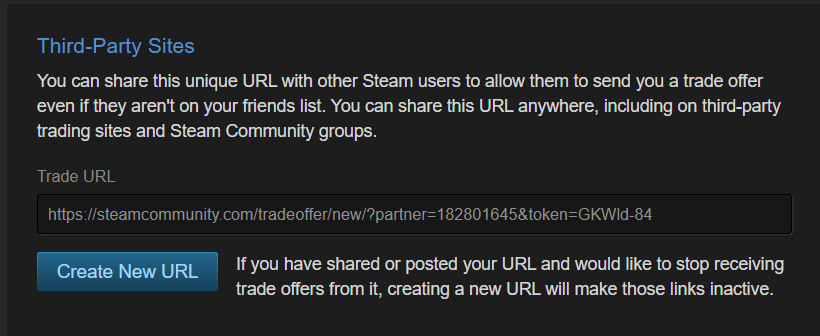
Step 5: Check Your Inventory Privacy
Make sure your Inventory Privacy is set to Public. If your inventory is private, PlayerBay sellers may not be able to send or verify Steam item trades.

Before Submitting Your Trade URL
- Confirm you are logged in to the correct Steam account.
- Copy the full Steam Trade URL without removing any characters.
- Make sure your inventory is set to Public.
- Check that your trade settings allow other users to send trade offers.
- Paste the Trade URL carefully during checkout or in the PlayerBay order chat when requested.
Once your Steam Trade URL is correct and your inventory is public, the seller can use it to send eligible Steam items through the Steam trade system.