
Buying on PlayerBay is simple. Choose the game or product you want, review the available offers, enter any required delivery details, and complete checkout using your preferred payment method.
This guide walks you through the basic purchase process from browsing offers to finding your order after payment.
Step 1: Go to PlayerBay
Start by visiting PlayerBay.com.
From there, search for a game you play or browse the available marketplace categories.
Step 2: Find the Product You Want
Choose the game, category, or product type you are interested in. PlayerBay offers different types of digital gaming products, including accounts, items, currency, top-ups, and more depending on the game.
When you open a product or currency offer, PlayerBay may automatically show a recommended offer based on factors such as price, seller rating, delivery speed, and overall offer quality.
| Offer Detail | What to Check |
|---|---|
| Price | Make sure the offer fits your budget before purchasing. |
| Quantity | Select the amount you want to buy, especially for currency, items, or stackable products. |
| Delivery Time | Review how quickly the seller says they can deliver the order. |
| Seller Rating | Check the seller’s feedback and order history when available. |
| Product Details | Read the listing carefully so you know exactly what you are buying. |
If the recommended offer does not match your preferred quantity, price, delivery time, or seller preference, you can review other sellers and choose a different offer.
Step 3: Select Your Quantity
Choose the quantity you would like to purchase. For some products, this may mean selecting an amount of currency, number of items, or a specific product option.
Make sure the selected quantity matches what you want before continuing to checkout.
Step 4: Click Buy Now
Once you have selected the offer and quantity, click Buy Now to continue to the order summary page.
Step 5: Enter Required Delivery Details
On the summary page, you may be asked to provide extra information required for delivery. The exact details depend on the product type and game.
| Possible Delivery Detail | Why It May Be Needed |
|---|---|
| In-Game Name | Used by the seller to deliver items, currency, boosts, or services to the correct character. |
| Account Name | Used to identify the correct game or platform account for delivery. |
| Email Address | May be required for certain account, top-up, or delivery processes. |
| Server or Region | Helps ensure the seller delivers to the correct game server or region. |
| Trade URL or Profile Link | Used for item deliveries that require a platform trade link or account URL. |
Double-check your delivery details before paying. Incorrect usernames, servers, regions, or account information can delay your order.
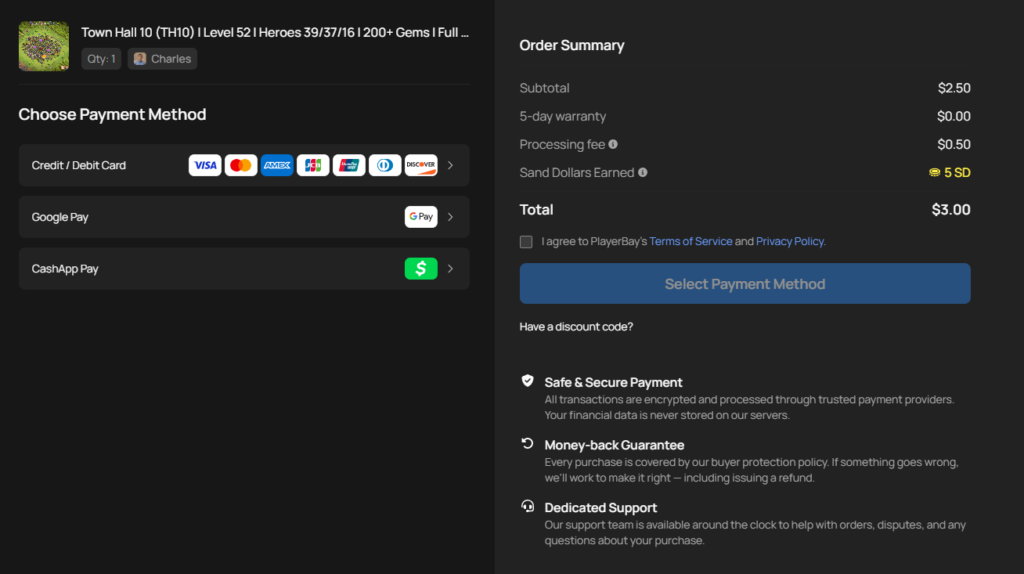
Step 6: Choose a Payment Method
Select your preferred payment method on the checkout page. After selecting a payment method, the checkout button may update based on the option you choose.
Review the order total, product details, and delivery information before completing payment.
Step 7: Complete Payment and Open Your Order
After completing payment, you will usually be redirected to your order page automatically.
If you are not redirected, you can always find your orders from the Purchases tab in your account dropdown menu.
After You Purchase
On the order page, you can view your order details, track the order status, and communicate with the seller through the PlayerBay order chat.
Some orders may be delivered instantly, while others require coordination with the seller depending on the game, product type, and delivery method.
See how to receive a purchased order for more details.
Keep all communication and delivery details inside PlayerBay. This helps protect your order and makes it easier for support to review the transaction if help is needed.