
After purchasing an account on PlayerBay, you should usually be redirected to the order page automatically. This is where you can view order details, communicate with the seller, and receive the account information.
If you are not redirected after checkout, you can access your purchase orders from your dashboard here: https://www.playerbay.com/dashboard/orders
Step 1: Open Your Purchases
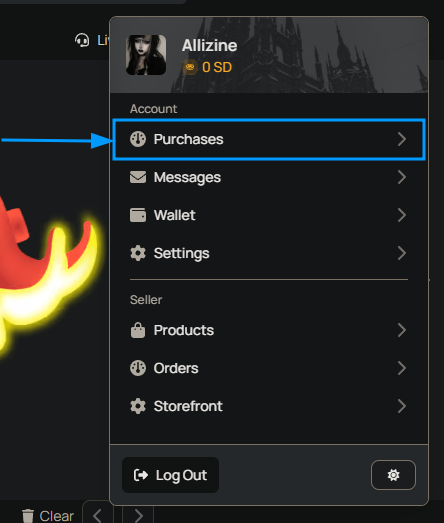
Click your avatar or username in the top-right corner of the page. From the dropdown menu, select Purchases.
Step 2: Locate Your Account Order
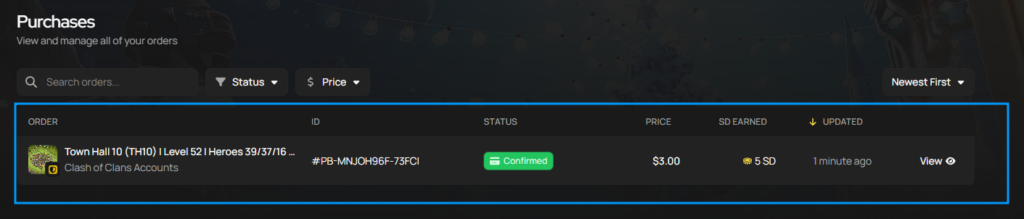
On the Purchases page, find the order you want to view. Your order list shows recent purchases, order status, seller information, and other important order details.
Step 3: Open the Order Page
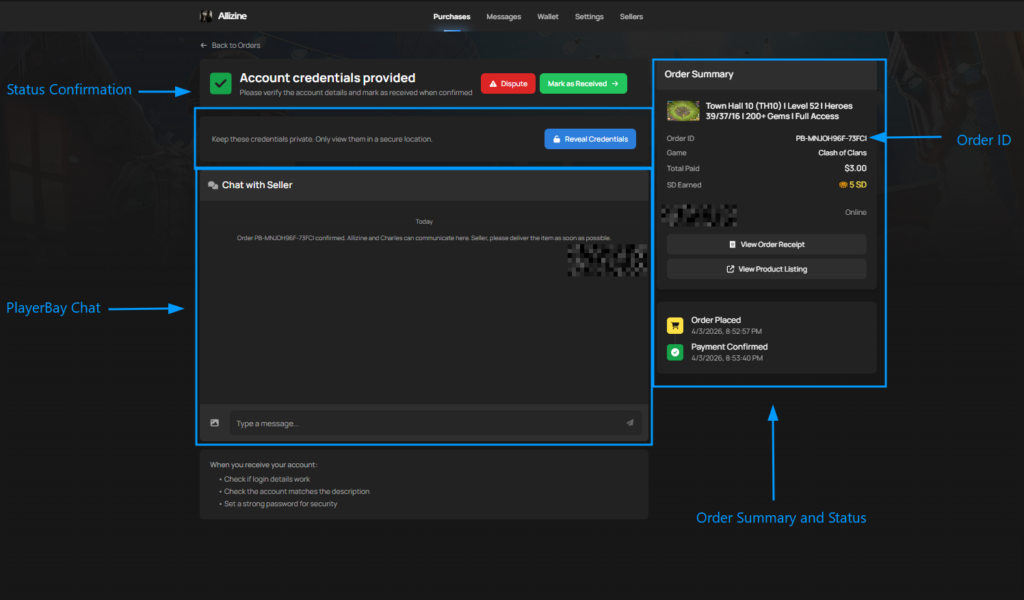
Click the order to open the full order page. This page contains your order details, delivery status, seller chat, and any account information provided through the selected delivery method.
How Account Details Are Delivered
PlayerBay supports both Instant Delivery and Manual Delivery for account orders. The way you receive the account information depends on the delivery method used by the seller.
| Delivery Method | How You Receive the Account |
|---|---|
| Instant Delivery | The account details are shown automatically at the top of the order page after purchase. |
| Manual Delivery | The seller sends the account details through the PlayerBay order chat after purchase. |
For manual delivery orders, the seller will send the required account information through the PlayerBay order chat and help with any required transfer steps, such as changing the account email when applicable.
What Account Information You Should Receive
PlayerBay only permits the sale of full-access accounts. This means the seller must provide everything needed to access, manage, and secure the account after purchase.
| Information Type | What It Includes |
|---|---|
| Account Login | The username, account ID, email, or other login identifier used to access the account. |
| Password | The current password for the purchased account. |
| Linked Email Access | If an email is attached to the account, the seller should provide access when needed for full ownership. |
| Security Information | Security questions, answers, backup codes, recovery codes, PINs, or other required recovery details when applicable. |
| Transfer Instructions | Any steps needed to change the password, update the email, remove old recovery methods, or secure the account. |
After Receiving the Account Information
Once you receive the account information, review the account carefully before confirming that everything is complete.
- Log in to the account and confirm that the provided credentials work.
- Check that the account includes everything promised in the offer description.
- Log in to the linked email account if one is attached.
- Change the password for both the game account and the linked email.
- Update recovery details when possible.
- Enable two-factor authentication on the game account and email for extra security.
Do not confirm the order until you have checked the account, verified that the credentials work, and confirmed that the account matches the listing.
If Something Is Wrong With the Account
If the login credentials do not work, the account is missing advertised content, the linked email is inaccessible, or the account does not match the listing, contact the seller through the PlayerBay order chat first.
The seller is required to assist you with account-related issues and should help resolve login, transfer, or access problems when possible.
| Issue | What to Do |
|---|---|
| Login does not work | Send the seller a screenshot or explain the error message in the order chat. |
| Account is not as described | Explain what is missing or different from the listing and include proof if available. |
| Email access is missing | Ask the seller to provide the linked email credentials or help complete the email change. |
| Security details are missing | Ask the seller for any required recovery codes, security answers, backup codes, or transfer instructions. |
| Seller is not responding | If the seller does not help within the required timeframe, raise a dispute when the option becomes available. |
When to Raise a Dispute
If the seller is unresponsive, unable to help, or the account issue cannot be resolved, you can raise a dispute from the order page when the option is available.
The Raise a Dispute option may become available when the order status is Pending Delivery or Order Delivered. After a dispute is raised, the PlayerBay team will review the order, chat history, evidence, and listing details before making a decision.
If the dispute is resolved in your favor, you may receive a refund.
You can learn more about our dispute process.
Keep all account delivery, transfer help, and issue reports inside the PlayerBay order chat. This helps support review the order if a dispute or account problem occurs.