
PlayerBay notifications help you stay updated when something important happens on your account, such as receiving a new message, getting a new order, or being alerted about account activity.
If you are a seller, keeping notifications enabled is especially important so you can respond to buyers quickly and avoid missing order updates.
If you are a buyer, notifications help you keep track of seller replies, order progress, and important account alerts.
This guide explains how to open your notification settings, enable the right notification options, and check your browser notification permissions.
Step 1: Open your account menu
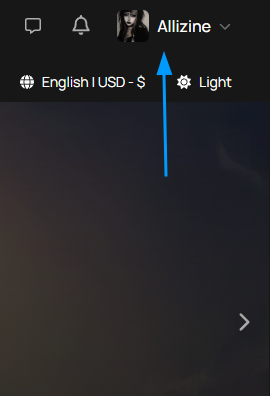
From the PlayerBay website, look at the top-right corner of the page. Click your profile picture, username, or the small arrow beside your account name.
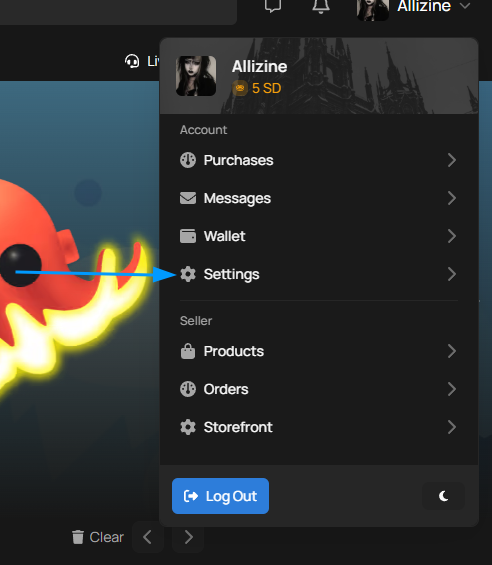
This opens your account dropdown menu. In this menu, you can access your purchases, messages, wallet, settings, seller tools, and other account options.
In the dropdown menu, click Settings.
Step 2: Go to the Notifications tab
After opening your settings page, you will see several tabs near the top of the settings area, such as General, Security, Notifications, and Connections.
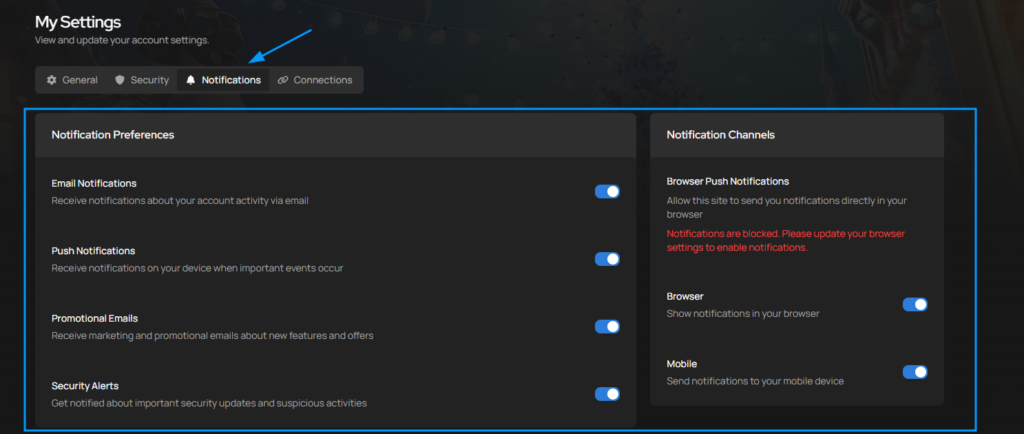
Click the Notifications tab. This is where you can control which types of notifications PlayerBay sends you and which channels are allowed to show notifications.
Step 3: Enable your notification preferences
In the Notification Preferences section, you can turn different notification categories on or off.
Email Notifications
Enable Email Notifications if you want to receive notifications about account activity through email. This is useful for order updates, message alerts, and other important activity related to your PlayerBay account.
Push Notifications
Enable Push Notifications if you want to receive notifications on your device when important events happen. This can help you notice new messages or order activity faster without needing to keep checking the website manually.
Promotional Emails
Enable Promotional Emails if you want to receive marketing emails, feature updates, offers, and promotional messages from PlayerBay. This setting is separate from important order or account notifications.
Security Alerts
We recommend keeping Security Alerts enabled. These notifications help you stay informed about important security updates or suspicious account activity.
Step 4: Check your notification channels
On the right side of the Notifications page, you may see a section called Notification Channels. This section controls where notifications can appear.
Browser Push Notifications
Browser push notifications allow PlayerBay to send notifications directly through your web browser. These can appear even when you are not actively looking at the PlayerBay tab, depending on your browser and device settings.
If you see a warning that says notifications are blocked, your browser is currently preventing PlayerBay from sending browser notifications. You will need to update your browser notification permissions before browser notifications can work.
Browser Notifications
Make sure Browser notifications are enabled if you want notifications to show in your browser.
Mobile Notifications
Make sure Mobile notifications are enabled if you want PlayerBay notifications to be sent to your mobile device when supported.
What to do if notifications are blocked
If the Notifications page says that browser notifications are blocked, this usually means your browser or device settings are preventing PlayerBay from sending notifications.
To fix this, check your browser’s site permissions and make sure notifications are allowed for PlayerBay. You may need to click the lock icon or site settings icon near your browser’s address bar, find the notification permission, and change it from blocked to allowed.
After updating your browser settings, refresh PlayerBay and return to your notification settings page to confirm that browser notifications are enabled.
Tips for sellers
If you sell on PlayerBay, we strongly recommend keeping order and message notifications enabled. New orders and buyer messages may require quick action, and missing notifications can delay delivery or make it harder to provide a good buyer experience.
Sellers should keep both email notifications and push notifications enabled whenever possible. This gives you more than one way to notice important activity on your account.
Tips for buyers
If you are buying on PlayerBay, notifications can help you keep track of seller replies, delivery updates, and account alerts. This is especially useful after placing an order or when you are waiting for a seller to respond to a message.
Keeping notifications enabled helps you avoid missing important updates related to your purchase.
Summary
To receive notifications about new orders or messages, open your account menu, go to Settings, select the Notifications tab, and make sure your preferred notification options are enabled.
For the best experience, enable email notifications, push notifications, browser notifications, and security alerts. If browser notifications are blocked, update your browser permissions so PlayerBay is allowed to send notifications.