
If you are not automatically redirected to your Purchases page after checkout, you can still find your order from your PlayerBay account menu.
Your Purchases page shows your active orders, order details, delivery information, and the order chat where you can communicate with the seller.
Step 1: Open the Account Menu
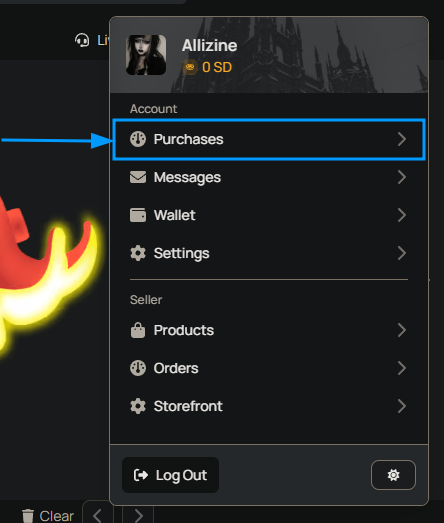
Click your profile icon or username in the top-right corner of the page. From the dropdown menu, select Purchases.
Step 2: Open the Purchases Tab
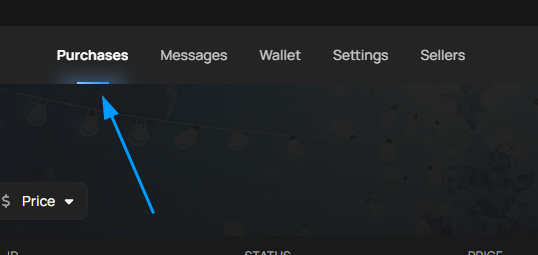
Once you are on your dashboard, make sure you are viewing the Purchases tab in the top navigation area.
This section contains your current and past purchases, including orders that are waiting for delivery, in progress, delivered, or completed.
Step 3: Open Your Order
Select the order you want to view. On the order page, you can review the order details, delivery status, seller information, and the live order chat.
Use the order chat to communicate directly with the seller, ask questions, provide any required delivery details, or coordinate the delivery if needed.
What You Can Do From the Order Page
| Order Page Area | What It Is Used For |
|---|---|
| Order Details | Review the product, price, delivery status, and order information. |
| Order Chat | Message the seller directly and coordinate delivery when required. |
| Delivery Information | Check how the product will be delivered based on the listing and order type. |
| Support or Dispute Options | If something goes wrong, eligible orders may show support, refund, or dispute options. |
The order page layout may look slightly different depending on whether you purchased an account, item, currency, top-up, boosting service, or another product type.
The exact delivery process depends on the game, product category, and seller’s selected delivery method. Always keep communication inside the PlayerBay order chat so support can review the order if help is needed.