
You can update the email address connected to your PlayerBay account from your account settings. For security, your email address will not be fully changed until you confirm the update through the verification email we send you.
Step 1: Go to Your Account Settings
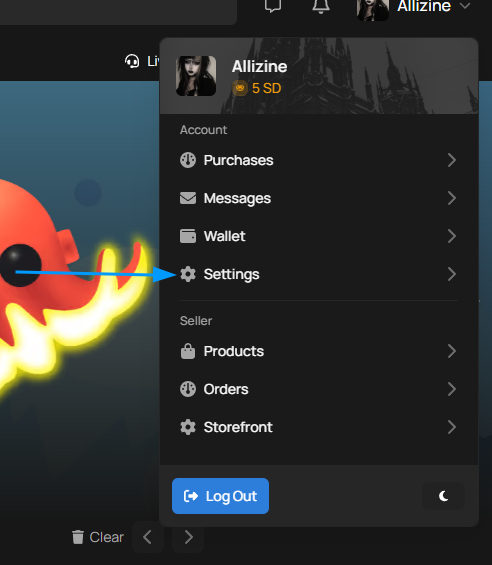
Log in to your PlayerBay account and navigate to your account settings.
Step 2: Open Your Profile Settings
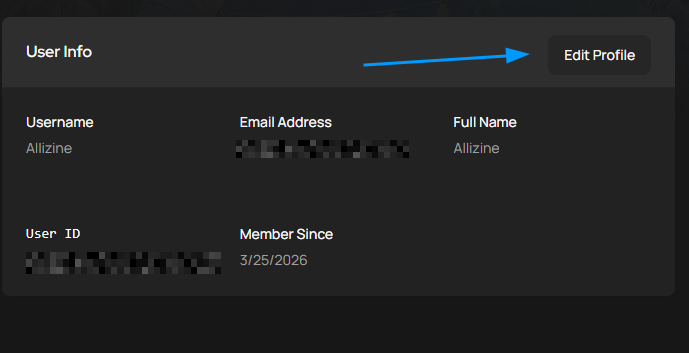
On the settings page, you will see your general account settings. Select Edit Profile to update your profile details.
Step 3: Update Your Email Address
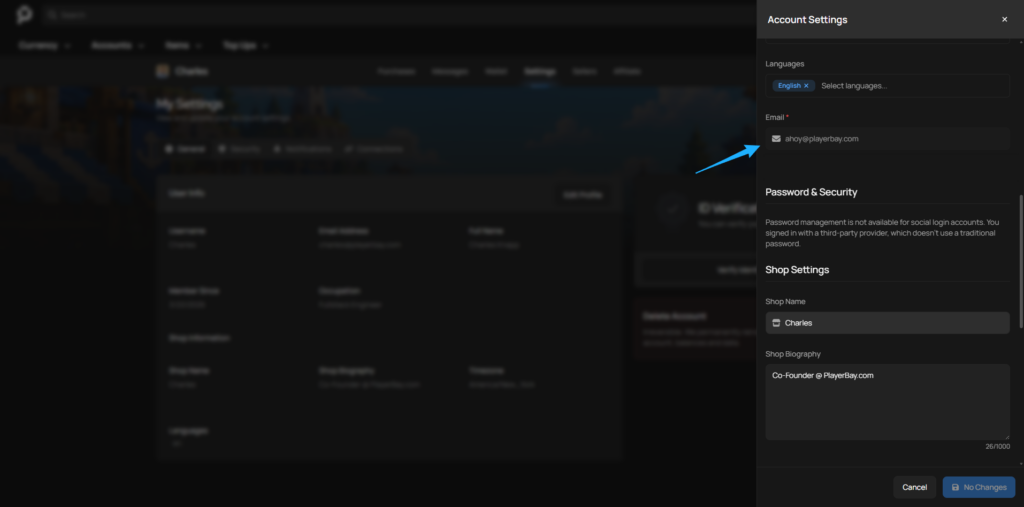
In the profile pop-up, scroll down until you see the email address field. Enter the new email address you want to use, then save your changes.
Step 4: Confirm the Change by Email
After saving your new email address, PlayerBay will send a confirmation email to the new address.
Open the email and click the confirmation link. Once the link is clicked, your email address will be confirmed and the change will take effect instantly.
Important Notes
Your email address is used for important account notifications, order updates, security alerts, and support communication. Make sure the new email address is active and accessible before updating it.
If you do not receive the confirmation email, check your spam or junk folder. You should also confirm that the email address was entered correctly.
Need Help?
If you are unable to access the confirmation email or believe you entered the wrong address, contact PlayerBay support for help. For your security, we may need to verify account ownership before making changes to your account.