
Two-factor authentication, also known as 2FA, adds an extra layer of protection to your PlayerBay account. When enabled, you may be asked to enter a verification code in addition to your password when signing in or making security-sensitive changes.
We strongly recommend enabling 2FA to help protect your account, balance, order activity, and personal information.
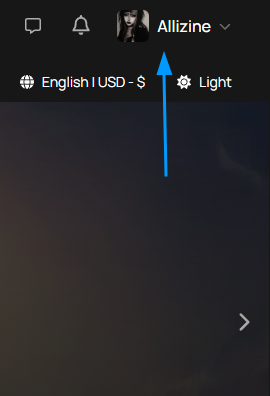
Step 1: Go to Your Account Settings
Log in to your PlayerBay account and navigate to your settings page.
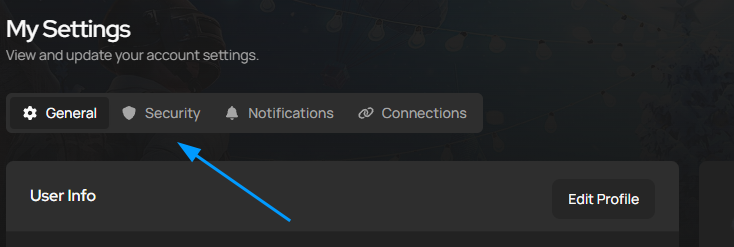
Step 2: Open the Security Tab
At the top of the settings page, you will see several account options. Select Security to view your account security settings.
Step 3: Review the Two-Factor Authentication Options
On the Security page, you will see the available two-factor authentication options for your account. Follow the on-screen instructions to set up 2FA using your preferred authentication method.
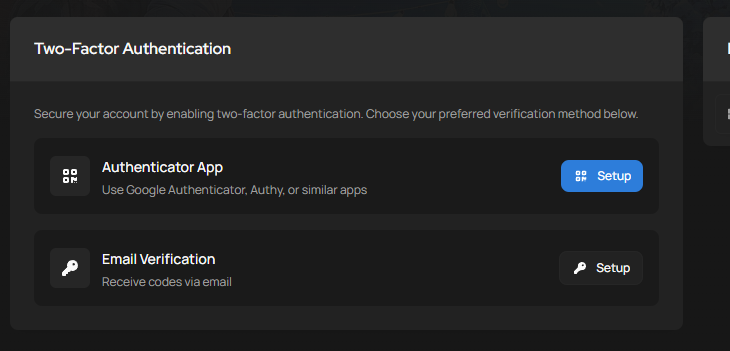
Once setup is complete, your account will require the additional verification step when 2FA is triggered.
Lost Access to Your 2FA Device?
If you lose access to your two-factor authentication device or authenticator app, you will need to request a 2FA reset.
Please contact our live support team so we can help you recover access to your account securely. For your protection, we cannot remove or reset 2FA until your identity has been verified.
Identity Verification Required
Before making any changes to your two-factor authentication settings, PlayerBay may require identity verification.
You may be asked to provide:
- A selfie of yourself holding a valid ID document
- A piece of paper clearly showing today’s date
This verification process helps confirm that the account belongs to you and prevents unauthorized users from removing 2FA from your account.
Keeping Your Account Secure
Never share your password, 2FA codes, or account credentials with anyone. PlayerBay support will never ask you to provide your password or authentication codes.
If you believe your account may be compromised, contact our support team as soon as possible.